
Friends and people
Friends can message and call each other directly, outside any server. The People directory helps you find new people to play and talk with.
Friends and People need a Tusile account. Guests see Create an account to use this feature. in Friends, and no People tab. See Your account.
Open your friends list
Section titled “Open your friends list”- Select Home at the top of the server list.
- Choose Friends.
The list has three tabs: Online, All and Pending. Pending holds requests you have Received and requests you have Sent.
Add a friend
Section titled “Add a friend”- In Friends, press the add friend button (a person with a +).
- Under ADD FRIEND, type their username, or their name and tag like
Renske#2841. - Choose Send invite.
They get a request and decide whether to accept. While they decide, it waits under Pending, Sent, marked Waiting for a reply. To take it back, choose Withdraw.
You can also add someone from their profile: tap their name or picture in chat or in a member list, then choose Add friend.
If you blocked the person earlier, Tusile asks whether to Unblock and add.
Answer a friend request
Section titled “Answer a friend request”Open Friends, then Pending. Each received request says Wants to be your friend. Choose Accept or Reject.
Message or call a friend
Section titled “Message or call a friend”Tap a friend, or press the Send message button next to them, to open a direct message. From there you can also start a voice or video call. See Direct messages and calls.
Remove a friend
Section titled “Remove a friend”In Friends, press the Remove friend button next to the friend (on a phone you can also swipe the friend to the left), then confirm. You can add each other again later.
Find people in the directory
Section titled “Find people in the directory”The People directory lists people who chose to be found, matched on what you have in common. Nobody is listed unless they answered the questions themselves, and Tusile does not match on your servers, your messages or anything else in your account.
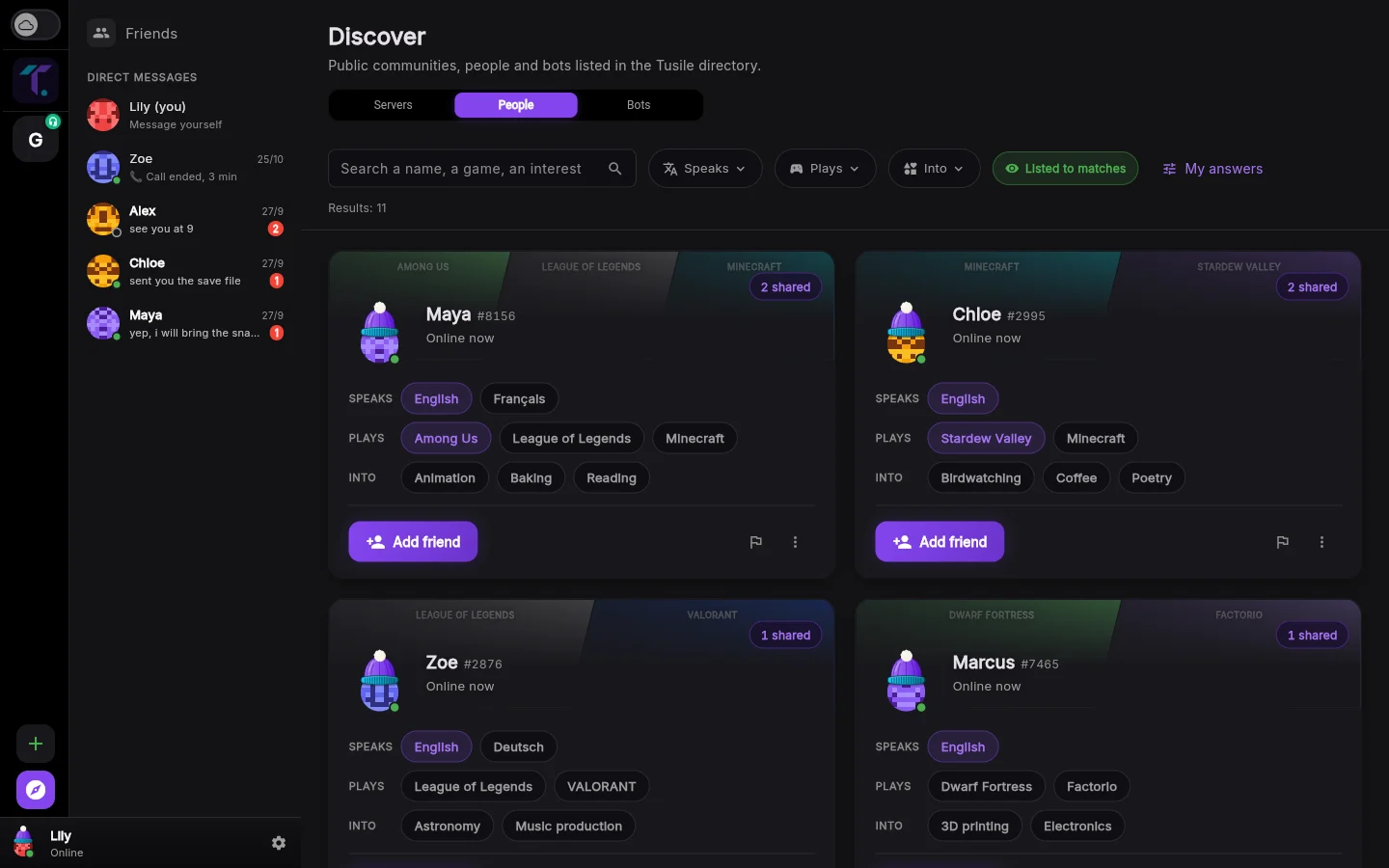
- Press the compass (Discover servers) in the server list, then choose the People tab.
- Answer three questions: What do you speak? (required), What do you play? and What else are you into? (both optional). Games and interests come from a fixed list, with no free text.
- Choose List me and show people.
Your answers are the whole of what other people see about you here. If you share your game activity on desktop, your games are filled in for you, and you can remove any of them.
Browse and filter
Section titled “Browse and filter”People are sorted by what you have in common. Use the search box (Search a name, a game, an interest) or the Speaks, Plays and Into filters to narrow the list. Clear filters brings everyone back.
On each card:
- Add friend sends a friend request. If that person already asked you, the button reads Accept.
- The flag button reports the person.
- The ⋮ (More options) menu has View profile, Copy username, Don’t show me followed by their name (they are not suggested to you again, with Undo), and Block followed by their name.
Stop being listed
Section titled “Stop being listed”Use the Listed to matches button at the top of the directory to switch to Not listed. Nobody can find you there until you switch it back. To change what you answered, choose My answers.
Show what you are playing
Section titled “Show what you are playing”The desktop app can show the game you are playing on your profile, and let friends use a Join button to come to the server you are on. You choose who can join under Who can join my game: Nobody, Friends or Everyone. See Profile and appearance.
Block someone
Section titled “Block someone”Blocking stops someone from messaging you and finding you in the directory. See Privacy and safety.