
Communities and channels
A community on Tusile is called a server. Each server has its own channels, roles and members. This page is about using a server you have joined. To join one, see Join a community. To run your own, see Create a community.
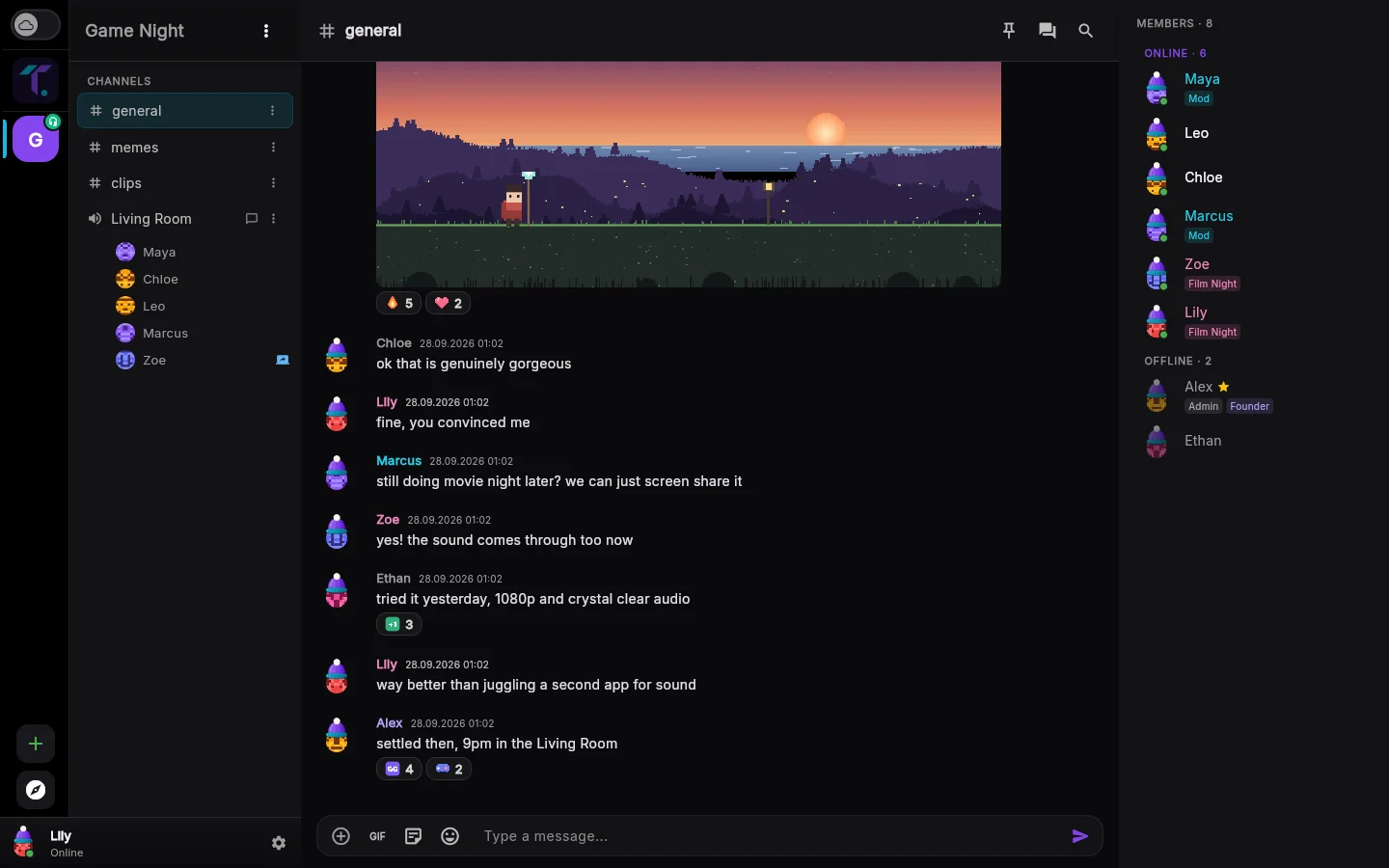
Find your way around
Section titled “Find your way around”On a computer, Tusile is laid out in columns, left to right:
- The server list. Home at the top holds your direct messages and friends. Below it are your servers. At the bottom are + (Add a server) and the compass (Discover servers). Drag a server to move it up or down the list.
- The channel list of the server you picked, with the server’s name and the ⋮ (Server options) button at the top.
- The chat of the channel you opened.
- The member list, split into Online, Offline and Bots.
On a phone, you see one thing at a time. Tap the menu button (☰) at the top left to open the server list and channel list, then tap a channel to open it. In a channel, the bar at the top has buttons for Search messages and Members, and its ⋮ menu holds Threads and Pinned messages.
Text and voice channels
Section titled “Text and voice channels”- Text channels (shown with #) are for messages, images, emoji and more. See Messages.
- Voice channels are for talking, with camera and screen share. Open one and press Join voice to join the call. The people already in it are listed under the channel, even before you join. See Voice chat.
Every voice channel has its own chat too. To read it without joining the call, use the chat bubble next to the channel, or Open chat in the channel’s menu.
Channels can be grouped under categories. Tap a category’s name to fold it away, and tap again to open it. Threads, smaller side conversations, are listed under the channel they belong to.
Channels you cannot open
Section titled “Channels you cannot open”A server’s owner decides who sees each channel:
- Public channels are open to everyone in the server.
- Private channels show in the list with a lock, but only members who have been added can open them. The lock sits on the channel’s own icon, so a private voice channel still shows its speaker.
- Hidden channels do not show at all unless you have been added.
If you think you should have access, ask the server’s moderators.
Unread messages
Section titled “Unread messages”A channel with new messages shows in bold, and a number badge counts messages that mention you. A server with something new is marked in the server list too. To clear them:
- One channel: right-click it in the channel list, or tap the ⋮ next to it, and choose Mark as read. On a channel you have already read, the same item reads Mark as unread, to come back to it later.
- A whole server: right-click the server in the server list (long-press on a phone) and choose Mark as read.
To choose which servers and channels notify you at all, see Notifications.
The server menu
Section titled “The server menu”Right-click a server in the server list, or long-press it on a phone. You get:
- Server Profile: the server’s own profile card.
- Members: everyone in the server.
- Invite people: a link to send to friends (if your role is allowed to invite).
- Sparks: support the server’s wallet. Not shown in the iPhone, iPad and Mac apps. See Hosting and plans.
- Settings: only for people who manage the server.
- Mark as read, and the notification choice All, Mentions or Muted.
- Leave server. If you own the server, this item reads Delete server? instead.
The ⋮ (Server options) at the top of the channel list has Server settings, Invite people, Report server and Leave server, plus Create category if you can manage channels. The owner does not see Report server or Leave server there. Every member can open Server settings, to set their own nickname and avatar for this server under My profile (see Profile and appearance).
Invite friends
Section titled “Invite friends”- Choose Invite people from the server menu or Server options.
- Copy the link, or share it straight to an app or as a QR code.
Your friend opens the link and joins, with or without an account. Whether you can invite depends on your role. More on links and codes in Invites and discovery.
You can also pull friends into a call: open a voice channel’s menu and choose Invite to a voice channel. They get a message with a link that drops them straight into that channel.
Members and roles
Section titled “Members and roles”Roles give people a colour, sometimes an icon, and permissions such as managing channels or moderating. Open someone’s profile from the member list or by tapping their name in chat. There you can add them as a friend, block them or report them.
Timeouts, kicks and bans
Section titled “Timeouts, kicks and bans”Moderators can act on members who break a server’s rules:
- Timeout: you cannot post for a while. The message box shows You are timed out and how long is left. A server can also time you out automatically for sending messages too quickly.
- Kick: you are removed from the server, and can come back with a new invite.
- Ban: you are removed and cannot rejoin.
How moderators do this is covered in Moderation.
Leave a server
Section titled “Leave a server”- Right-click the server in the server list (long-press on a phone), or open Server options.
- Choose Leave server and confirm.
If you own the server, there is no Leave server: the server menu offers Delete server? instead, which deletes it for every member. Servers cannot be handed to a new owner yet. See Delete a community.