
Screen share
You can share your screen in any voice channel or DM call. Everyone in the call can watch, and from Windows, Linux and Android you can share the sound too.
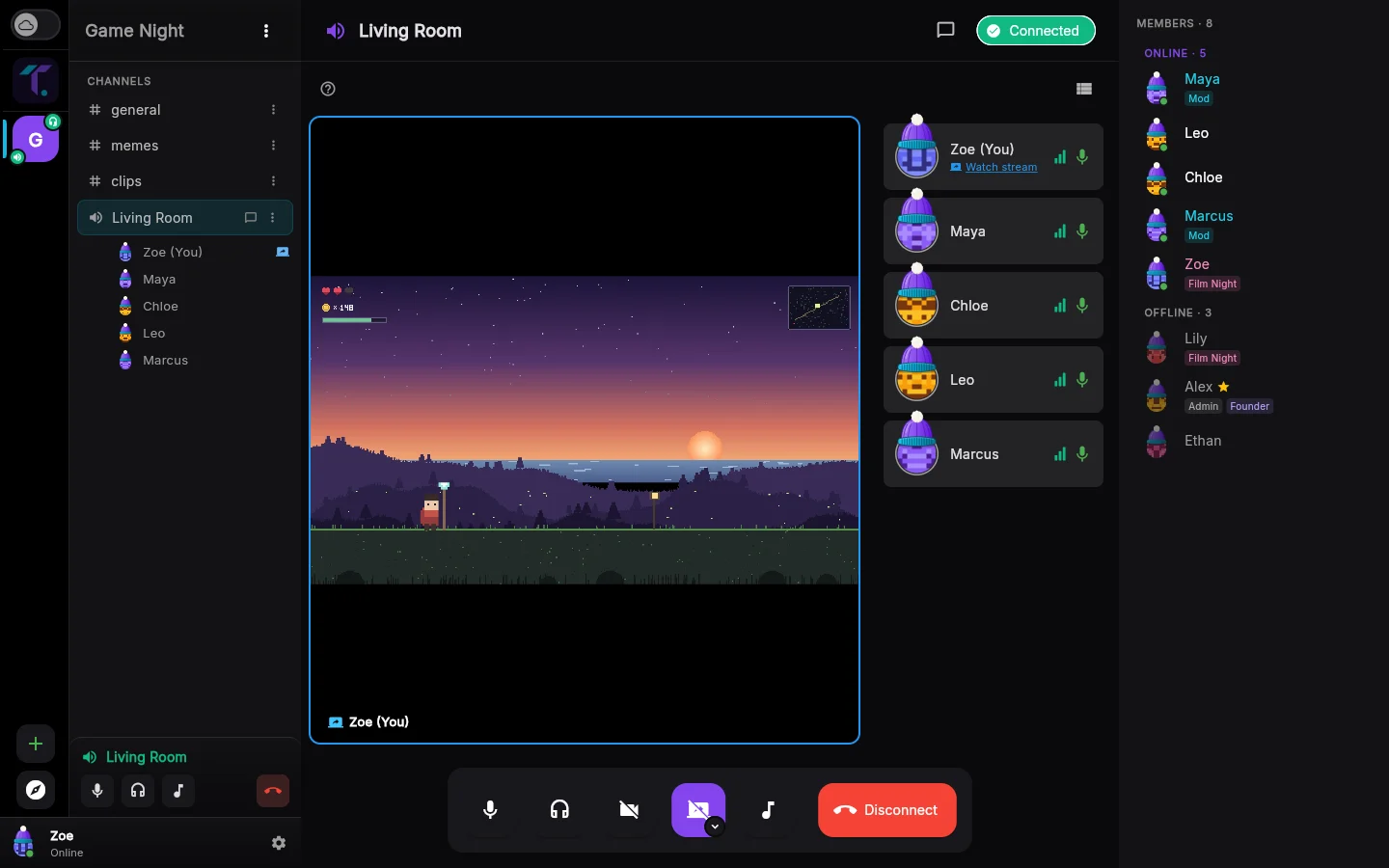
Start sharing
Section titled “Start sharing”- Join a voice channel or start a DM call.
- Press Share screen. On a narrow screen it is in the video button’s menu.
- Pick what to share and press Share.
To stop, press Stop sharing.
What happens at step 3 depends on your device:
| Device | How you pick |
|---|---|
| Windows app | Tusile’s picker, with an Applications tab (one app or game) and a Screen tab (a whole monitor) |
| macOS and Linux apps | Tusile’s picker with your screens |
| Browser | Your browser’s own picker |
| iPhone and iPad | The system broadcast picker: tap Start Broadcast |
| Android | The system screen capture prompt |
macOS: Screen Recording permission
Section titled “macOS: Screen Recording permission”macOS asks you to allow Tusile under System Settings, Privacy & Security, Screen Recording. Without that permission, viewers only see the Tusile window instead of your screen. After you allow it, restart Tusile.
Options in the picker (desktop)
Section titled “Options in the picker (desktop)”Tusile’s picker remembers what you chose last time. You can also set the defaults in Settings, Video, under Screen share. In the browser and on phones there is no Tusile picker, so the share uses those saved settings.
- Resolution: 360p, 720p, 1080p or 1440p.
- Frame rate: 15, 30 or 60 fps.
- Bitrate: Auto (recommended) picks a bitrate for your resolution and frame rate. You can pick your own where the server allows it (see below).
- Optimize for: Text and images suits documents and code. Motion and video suits games and video and uses more bandwidth. Either way, when your connection or computer cannot keep up, the frame rate drops first so the picture stays sharp.
- Show cursor: draw your mouse pointer onto the shared picture.
- Share sound: include your computer’s audio.
- Windows: sharing one app from Applications shares only that app’s sound. Sharing a whole screen shares all of your system audio.
- Linux: Share sound shares your system audio.
- Android (10 or newer): your phone’s sound is mixed into your microphone audio. Some apps do not allow their sound to be captured.
- macOS, iPhone and iPad: the share has no sound.
- Browser: your browser decides. Chrome and Edge show a “share audio” switch in their own picker.
Your own voice goes out over your microphone as usual, separate from the shared sound (on Android the two are mixed).
Change a share while it runs
Section titled “Change a share while it runs”While you share, press Options (the small arrow next to the share button), or long-press the share button:
- Change source switches to another screen or app without stopping (desktop and browser).
- Quality opens the same options as the picker.
Changing the source, cursor, optimize mode or sound restarts the capture, so viewers may see a short pause. If your computer cannot encode fast enough, Tusile lowers the quality on its own and tells you which quality the share now goes out at.
Quality limits
Section titled “Quality limits”What viewers get depends on where you share:
| Where | Resolution | Bitrate |
|---|---|---|
| Free hosted community | Up to 1080p | Auto |
| Supercharged hosted community | Up to 1440p | Auto or your pick |
| Self-hosted community | Up to 1440p | Auto or your pick |
| DM call | Up to 1080p | Auto |
A higher saved setting is not lost: on a server that does not allow it, the share simply goes out at 1080p and Auto, and your pick comes back on a server that does.
Free hosted communities share a machine with other communities. While that machine is busy, video and voice quality are reduced for calls started on it until it settles. A Supercharged server runs apart from that machine and is never capped this way, however big it grows. More on plans is on the pricing page.
The Android app shares at up to 30 fps.
Watch a stream
Section titled “Watch a stream”When someone shares, a screen icon shows next to their name in the channel list. If you are not in the call yet, press it to Join to watch.
In the call:
- Switch to List view (see Pick how the call looks). Streams show as tiles there.
- Press Watch stream on a tile, or on the person in any view.
Over a stream you are watching:
- Mute stream and Stream volume change only the stream’s sound. All streams sets the volume for every stream at once.
- Pop out moves the stream into a small floating window. Drag it anywhere and resize it from its corner. It also appears when you leave the call to read a text channel or a DM.
- Full screen fills your screen. The name and buttons fade after a few seconds; tap the stream to bring them back. Press Exit full screen to go back.
- Stop watching closes the stream. You stay in the call.
On Android, leaving the app while you watch a stream shrinks it into the system’s picture-in-picture window.