
Profile and appearance
Your profile is what people see when they tap your name or picture. Most of it lives in Settings: open it with the gear icon next to your name at the bottom of the left panel.
Avatar, display name and bio
Section titled “Avatar, display name and bio”Open Settings, then My Account.
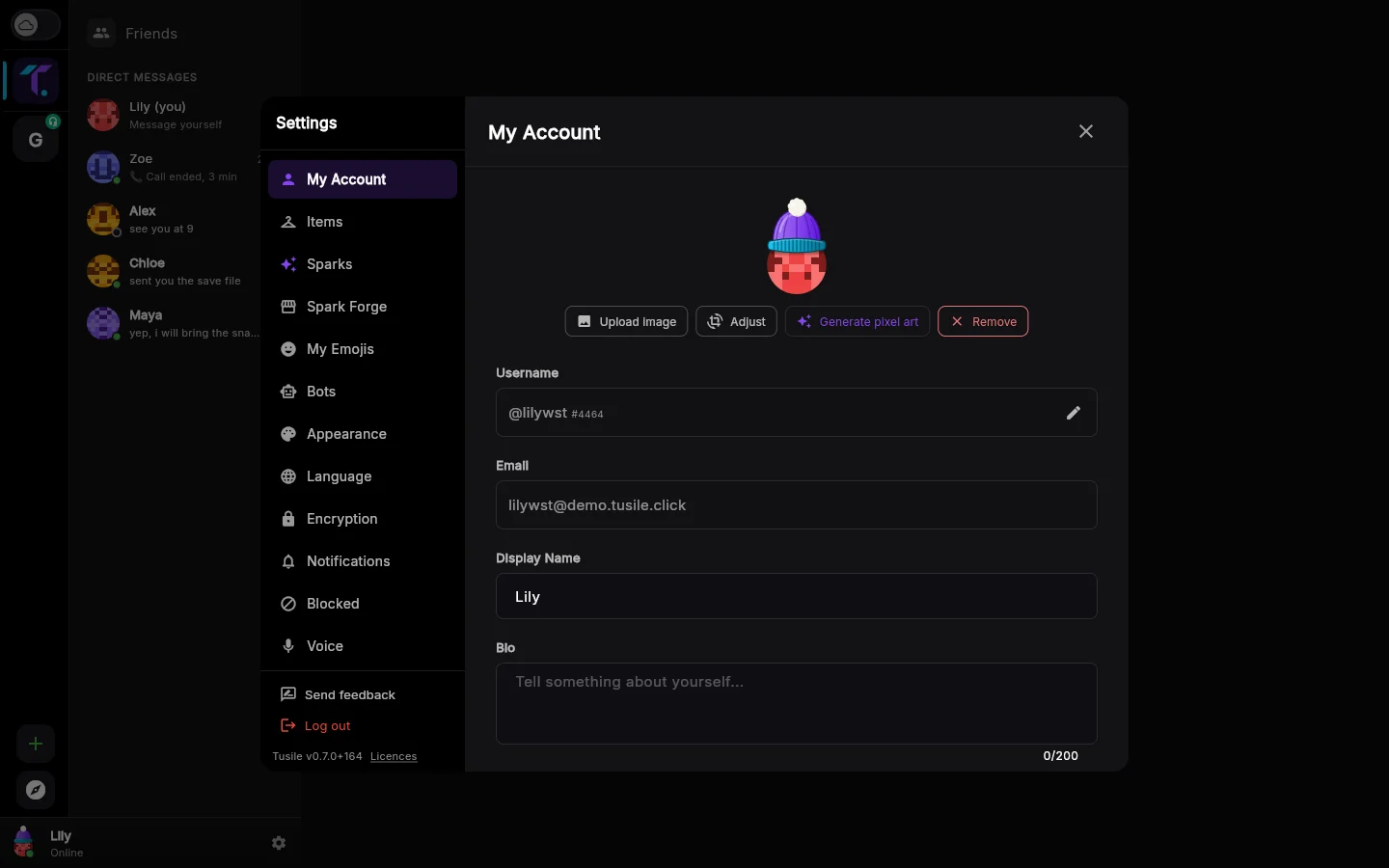
- Avatar: choose Upload image, or drag a picture onto the screen. Tusile opens Place your picture, where you drag to move it and use Zoom, Rotate, Mirror and Reset. To reframe the current picture later, choose Adjust. Generate pixel art makes a pixel-art avatar for you, and Remove clears it.
- Display Name: the name shown next to your messages. It can differ from your username.
- Bio: a few words about yourself, shown on your profile.
Animated avatars
Section titled “Animated avatars”Upload a GIF and your avatar moves for everyone, as a short loop of up to 6 seconds. It is free. GIFs that flash too fast are refused.
Change your username
Section titled “Change your username”Your username is how other people find and add you.
- Open Settings, then My Account.
- Choose the pencil next to your username (Change username).
- Type the New username and save.
You can change it once every 30 days. If you have not set a display name, your #tag may change too.
Status
Section titled “Status”Tap your name or picture at the bottom of the left panel to open the status menu:
- Online
- Away
- Do Not Disturb: you will not receive notifications.
- Invisible: you appear offline to others, but can use Tusile as usual.
A different profile for one server
Section titled “A different profile for one server”You can use a different nickname and avatar in each community. Direct messages always use your main profile.
- Open the server.
- Choose Server options (the ⋮ at the top of the channel list), then Server settings.
- Open My profile.
- Set a Server nickname and choose Save, or choose Upload server avatar.
To go back to your main picture there, choose Remove server avatar.
Hats and items
Section titled “Hats and items”Hats sit on your avatar everywhere in Tusile: in chat, member lists, voice and your profile. You earn them by doing things on Tusile, such as joining, completing your profile, bringing a friend to Tusile, showing up several days in a row or playing activities.
Open Settings, then Items:
- You are wearing shows your current hat. Choose Take off to go bare.
- Your items lists everything you own: hats, weapons and vehicles. Tap one to wear it, and tap it again to take it off.
- Quests lists what you can do to unlock more hats and weapons. Some quests pay Sparks too.
- Show my collection on my profile lets others browse your items. Your worn hat stays visible either way.
Weapons and vehicles show up in games, such as Marble Kingdom and Song Ride.
The Spark Forge, its own tab in Settings, sells hats, weapons and vehicles for Sparks, Tusile’s prepaid credit. Nothing there is needed to use Tusile. The iPhone, iPad and Mac apps do not show the Spark Forge or Sparks; items you already own still show there.
Banners
Section titled “Banners”A banner belongs to a community, and its owner picks it. A community gets its first colour free once it has a clan tag. When you wear that clan tag, the banner flies behind your name, on your profile and over your cities in Marble Kingdom. To hide it, turn off Fly my clan’s banner under Clan tag in Settings, My Account.
Clan tag
Section titled “Clan tag”A clan tag is three letters or digits from one of your communities, shown next to your name everywhere in Tusile.
- Open Settings, then My Account.
- Under Clan tag, pick one of your communities, or None.
Only communities whose owner has set a tag appear. Owners set it in the server settings.
Activity on your profile
Section titled “Activity on your profile”- Spotify: in Settings, My Account, choose Connect Spotify to show what you are listening to.
- Games (desktop app): in Settings, Desktop app, turn on Share game activity to show which game you are playing. Who can join my game decides who sees a Join button for the server you are playing on: Nobody, Friends or Everyone.
Theme and light or dark mode
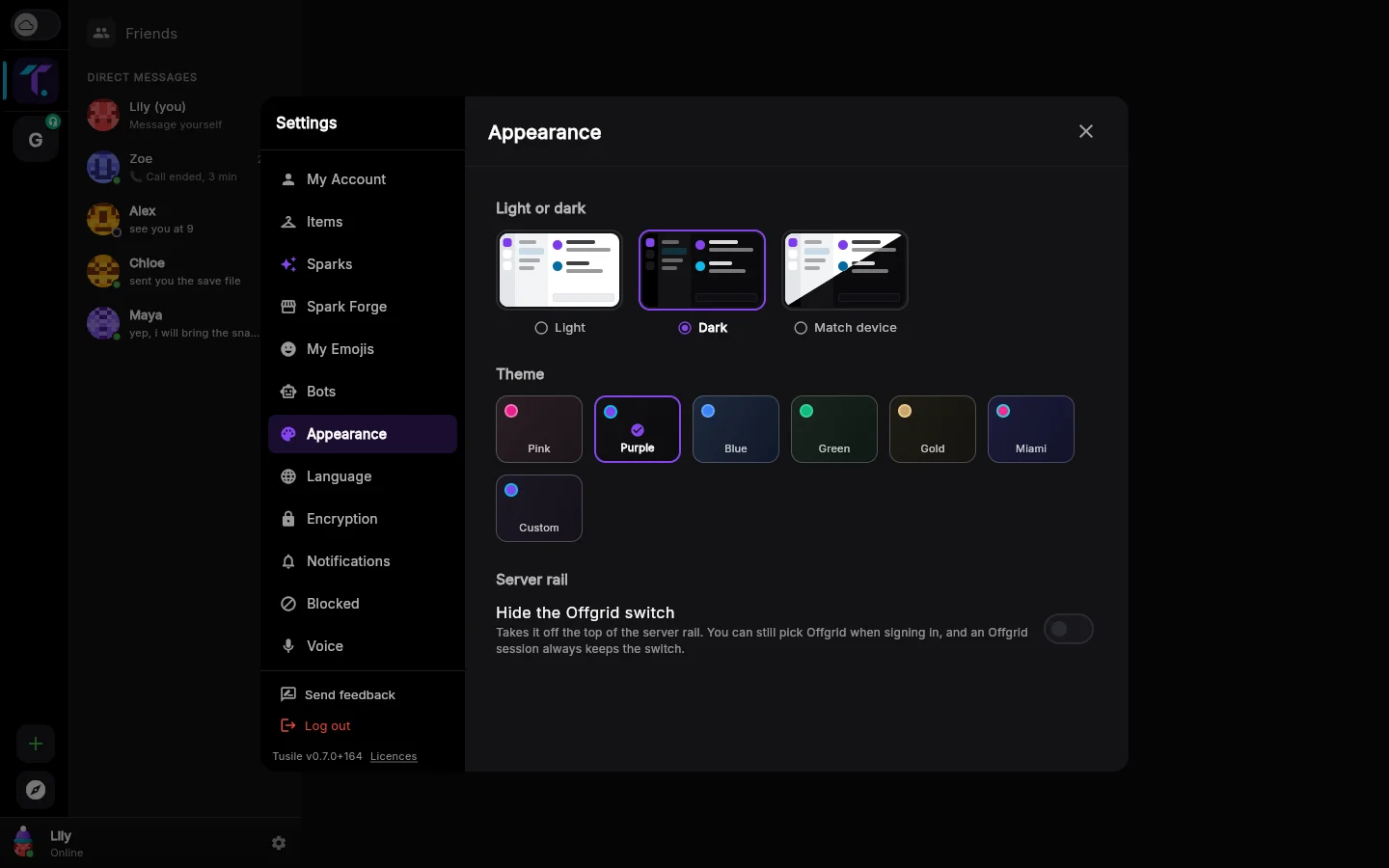
Section titled “Theme and light or dark mode”Open Settings, then Appearance. Changes apply right away.
- Light or dark: choose Light, Dark or Match device. Match device follows your system setting and switches when it does.
- Theme: pick a colour preset (Pink, Purple, Blue, Green, Gold or Miami), or Custom to choose your own Accent and Highlight colours.
On most platforms the app icon follows your theme colour too.
Hide swear words
Section titled “Hide swear words”Open Settings, then Appearance, and turn on Hide swear words. Swear words in messages then show as asterisks. It covers every language Tusile speaks, applies only on this device, and changes nothing for the sender or anyone else.
Language
Section titled “Language”Open Settings, then Language, and pick one:
- English
- Polski
- Deutsch
- Русский
- Español
- Français
- Português
- Türkçe
- العربية (Arabic, shown right to left)
The language is saved per device, and notifications switch to it too. The same screen has Spell check, which underlines misspelled words while you type a message, an edit or your bio. It works everywhere except the Linux app.