
Messages
Everything on this page works in community text channels. Direct messages share most of it (replies, reactions, GIFs, files, editing); see Direct messages and calls for what is different there.
Send a message
Section titled “Send a message”Type in the box at the bottom of a channel and press Enter. A message can be up to 4,000 characters. If you paste something longer, Tusile offers Send as file and posts it as a text file instead.
Text you type and do not send stays in the box as a draft for that channel.
Message actions
Section titled “Message actions”- Desktop and web: hover over a message. A small toolbar appears with React, Reply, Forward, Copy message link, Create thread, Pin for me, Edit (your own messages), Report and Delete.
- Phone: press and hold a message. A sheet opens with quick reactions and the same actions.
What you see depends on your permissions in that channel. For example, Pin for everyone and deleting other people’s messages need the Manage Messages permission.
Formatting
Section titled “Formatting”Tusile uses Markdown. Type /style and send it to open Formatting & commands, a cheat sheet of everything below.
| Type this | You get |
|---|---|
**bold** |
bold |
*italic* |
italic |
__underline__ |
underlined text |
~~strike~~ |
|
||spoiler|| |
hidden text, revealed when someone taps it |
`code` |
inline code |
```block``` |
a code block |
[label](https://tusile.com) |
a link with your own label |
# heading |
a heading |
> quote |
a quote |
- list |
a bullet list |
@name |
a mention of that person |
:smile: |
an emoji by its name |
Code blocks have a copy button in their corner.
Links get a preview card automatically. The preview is fetched by a Tusile server, not by your device, so the linked site does not see your IP address.
Slash commands
Section titled “Slash commands”Start a message with / to use a command. Tusile has these built in:
| Command | What it does |
|---|---|
/poll Question | Option 1 | Option 2 |
Opens the poll window with your question and options filled in. Channels only. |
/roll 2d6+1 |
Rolls dice and posts the result. Use XdY, optionally +Z or -Z. The largest roll is 100d1000. |
/spoiler text |
Sends the text hidden behind a spoiler. |
/style |
Shows formatting, commands and keyboard shortcuts. |
/tiphat @member |
Tips the hat you are wearing to the channel or to one person. Channels only. |
There are also kaomoji shortcuts. /shrug, /tableflip, /unflip, /lenny, /happy, /sad, /angry, /love, /bear, /cry, /wink and /fight add the matching face to the end of your message, or send it alone.
If you can moderate, the list also has /timeout, /untimeout, /kick, /ban and /unban. See Moderation. With Manage Server, /discord brings a Discord server over; see Discord import.
When a command takes options, each one gets its own box. Press Tab to move to the next box.
Bots added to a server bring their own commands. They show up in the same list as you type /.
Keyboard shortcuts
Section titled “Keyboard shortcuts”| Key | Action |
|---|---|
| Enter | Send message |
| Shift + Enter | New line |
| ↑ (in an empty box) | Edit your last message |
| Esc | Cancel a reply or an edit |
| Tab | Accept the autocomplete suggestion (mentions, emoji, commands) |
Reply and forward
Section titled “Reply and forward”- To reply, choose Reply. A Replying to bar appears above the box. Tap the quoted message in a reply to jump to the original.
- To forward, choose Forward, then pick a destination in the Share to… sheet: a recent conversation, a channel in any of your servers, or your own chat with yourself. Forwarded messages are labelled Forwarded.
Edit and delete
Section titled “Edit and delete”- To edit your own message, choose Edit (or press ↑ in an empty box), change the text and save. Edited messages show (edited). Click or tap (edited) to open Edit History and see earlier versions.
- To delete, choose Delete and confirm. You can always delete your own messages. Moderators with Manage Messages can delete anyone’s.
Messages that are only an image or a sticker cannot be edited.
Reactions
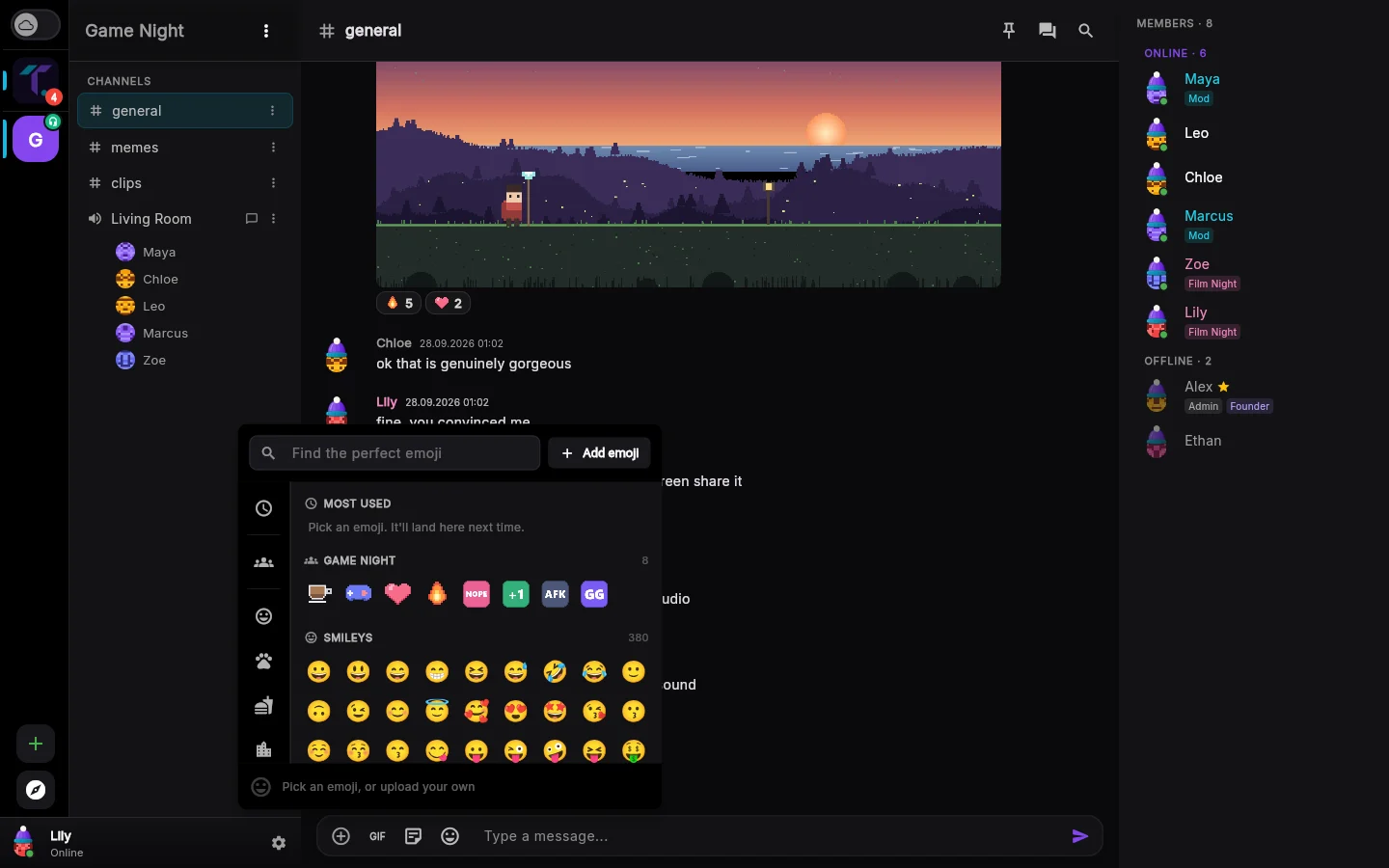
Section titled “Reactions”To react, choose React and pick an emoji. On a phone, holding a message shows six quick reactions (👍 ❤️ 😂 😮 🔥 🎉) and All emojis for the full picker. To add or remove your reaction on an existing one, tap it under the message.
Open the emoji picker with the smiley button in the message box (on a phone, press + and choose Emoji). The picker has four tabs:
- Emoji: the standard set, with Most used at the top and a search box.
- Mine: your personal emoji. You can use them in any server that allows them.
- Server: the custom emoji of the server you are in.
- Other: emoji from your other servers.
To upload personal emoji, open Settings, then My Emojis, then Upload Emoji. Files must be GIF, PNG or WebP, up to 512 KB, with a name of 2 to 32 characters (lowercase letters, digits and underscores). You can also drag an image onto that screen.
A server owner can turn off Allow emojis from other servers or Allow personal emojis. In that server you can then only use its own emoji. Server emoji are managed under Server settings; see Communities and channels.
Stickers
Section titled “Stickers”Choose the sticker button in the message box (on a phone, + then Sticker) and pick one. Stickers come from the servers you are in. A server can block stickers from other servers, and stickers are not available in direct messages.
Choose GIF in the message box (on a phone, + then GIF), search, and tap a GIF to send it. Star a GIF to add it to Favourites. Your favourites follow you to every device.
Files and images
Section titled “Files and images”To attach files, press the + button in the message box and choose Add file. You can also:
- drag files onto the chat (you see Drop to upload),
- paste an image from your clipboard.
A message can carry up to 10 attachments. The size limit per file depends on where you post:
| Where | Limit per file |
|---|---|
| Free hosted server | 50 MB |
| Supercharged hosted server | 500 MB |
| Self-hosted server | No limit |
| Direct messages | 50 MB (25 MB in an encrypted conversation) |
There is no cap on how many files you upload in total. To save an image, right-click it (long-press on a phone) and choose Copy image or Download image.
Threads
Section titled “Threads”A thread is a side conversation that branches off one message, so a long discussion does not bury the main channel.
- Hover over the message and choose Create thread.
- Give the thread a name and confirm.
To start a thread that does not hang off one message (this also works on a phone), open the channel’s menu (right-click it in the channel list, or tap the ⋮ next to it), choose Create thread, type a name and choose Create.
To find threads, open the Threads panel from the channel header (on a phone, the ⋮ menu, then Threads). It lists threads you joined, older threads and closed ones, with a Search thread name box.
The person who started a thread, and anyone with Manage Channels, can Pin thread to keep it at the top or Close thread to archive it.
- Press + in the message box and choose Create Poll (or type
/poll). - Write the question and at least two options. A poll can have up to 10.
- Optionally turn on Allow multiple choices and pick a Duration, from 5 minutes to 1 week, or No time limit.
- Send it.
Everyone sees the votes update live. The poll’s author can Edit poll. The author and moderators can End poll, which stops voting and shows the final result.
Polls work in channels, not in direct messages.
There are two kinds of pins:
- Pin for everyone puts the message in the channel’s pinned list for all members. It needs the Manage Messages permission.
- Pin for me saves the message to your own list. Nobody else sees it.
To see pins, open Pinned messages from the channel header (on a phone, ⋮, then Pinned messages). The panel has a Server tab and a My pins tab. Choose Jump to to scroll to the message.
Copy a message link
Section titled “Copy a message link”Choose Copy message link to copy a link straight to that message. Anyone in the server who opens or taps it lands on the message.
Search
Section titled “Search”To search a server, choose the search icon in the channel header and type your words. Tusile searches every text channel in that server that you can see. Tap a result to jump to it.
To search a direct message, use the search icon in that conversation’s header.
Unread messages
Section titled “Unread messages”When you open a channel with new messages, a NEW line marks where you left off, and a banner offers Mark as read. Marking whole channels or servers read or unread is covered in Communities and channels.
Notification settings for channels and servers are on the Notifications page.
Report a message
Section titled “Report a message”Choose Report on someone else’s message to send it to Tusile’s moderation team. See Privacy and safety for how reports and blocking work.