
Direct messages and calls
Direct messages (DMs) are private conversations outside any community. They live on your Tusile account, so they follow you to every device and do not depend on any server you have joined.
Open your direct messages
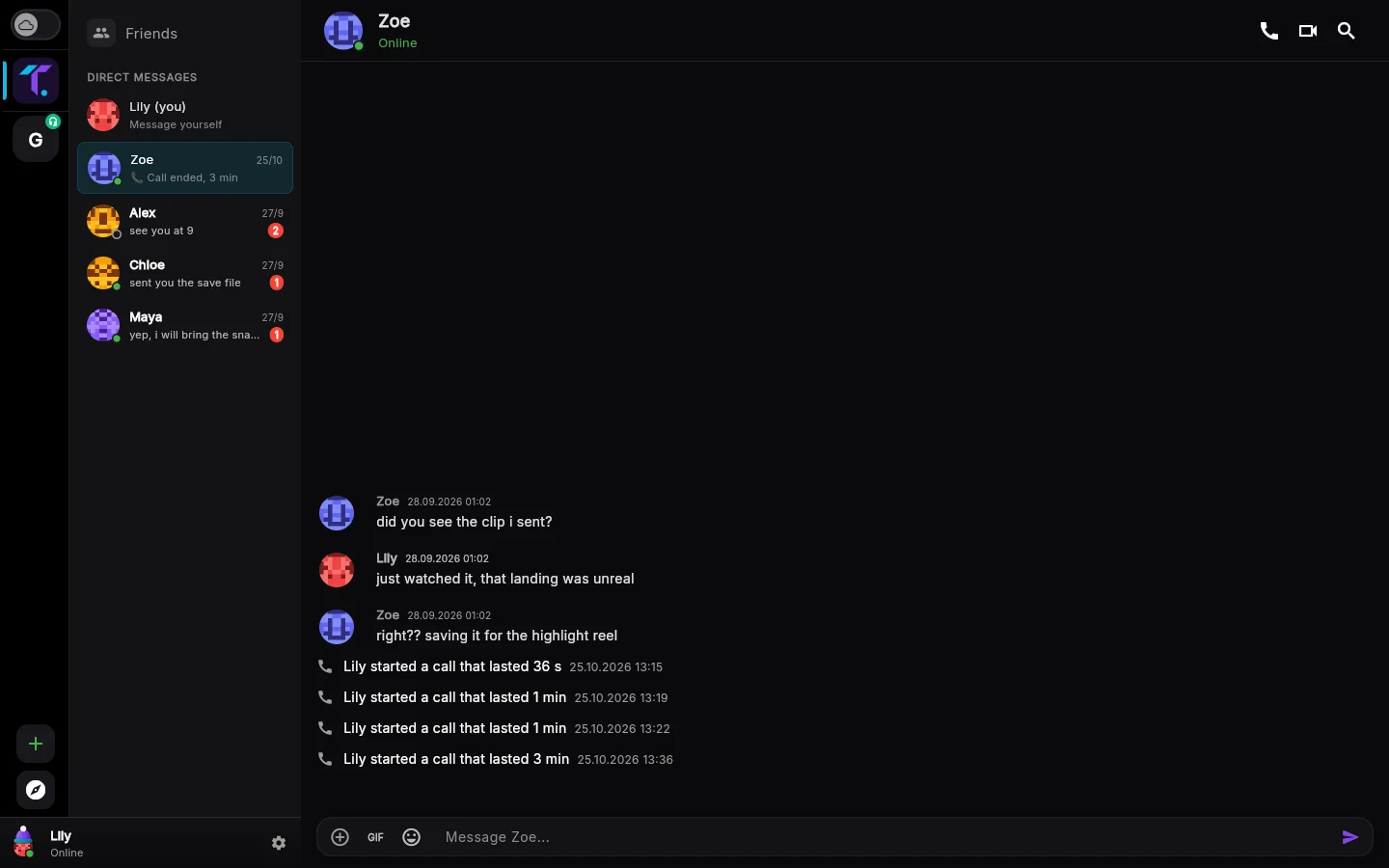
Section titled “Open your direct messages”Select Home at the top of the server rail. The DIRECT MESSAGES list shows your conversations, newest first.
Start a conversation
Section titled “Start a conversation”- Open Friends.
- Tap a friend, or choose Send message next to them.
The conversation opens with the message box ready. To add someone as a friend first, see Friends and people.
What works in a DM
Section titled “What works in a DM”DMs support most of what channels do: formatting, emoji, GIFs, files, replies, reactions, forwarding, editing and deleting your own messages, and search (the search icon in the header, or ⋮, then Search messages on a phone). See Messages for how each one works.
A few things are channel-only: threads, polls, pins and stickers.
Files in a DM can be up to 50 MB each, or 25 MB in an encrypted conversation.
Message yourself
Section titled “Message yourself”Your DM list has a chat with yourself, shown as your name with (You) and the line Message yourself. Use it for notes, links and files you want on every device. You can also forward messages there from any channel.
Message requests
Section titled “Message requests”If someone who is not your friend and shares no server with you writes to you, the conversation arrives as a request. You do not get a push notification for it, and a banner reading Message request: you are not friends and share no server. sits above the message box with three choices:
- Accept turns it into a normal conversation. Replying also accepts it.
- Decline closes it. You see You declined this conversation.
- Block declines and blocks that person.
Only accounts with a confirmed email address can start a conversation with a stranger.
You can make voice and video calls from any DM with a friend. One-to-one calls are only between friends.
Start a call
Section titled “Start a call”- Open the conversation.
- In the header, choose the phone icon (Start voice call) or the camera icon (Start video call).
While it rings, you see Calling {name}… with the other person’s name. If a call is already going on in that conversation without you, the phone icon becomes Join call.
Answer a call
Section titled “Answer a call”An Incoming call card appears with {name} is calling you. Choose Accept, Accept with video or Decline. On a phone, calls also ring through push notifications, so they reach you when Tusile is in the background, as long as notifications are on.
During a call
Section titled “During a call”The call sits above the messages, so you can keep chatting. It has the same controls as a voice channel: mute, deafen, camera, screen share, push-to-talk and a volume for each person. See Voice chat and Screen share.
Every call leaves a line in the chat, for example how long it lasted, Missed call from {name} or You called. No answer.
Turn off incoming calls
Section titled “Turn off incoming calls”To stop calls ringing on all your devices, open Settings, then Notifications, and turn off Incoming calls. Calls to you then show as missed. Do Not Disturb status does the same while it is on.
Change the ringtone
Section titled “Change the ringtone”Open Settings, then Notifications, and scroll to Call sounds. You can set the sound for Incoming call and for Calling someone, and press Play to hear it first. You can pick one of the built-in ringtones. To use your own, choose Upload MP3 (up to 3 MB). Call sounds are saved per device.
End-to-end encryption
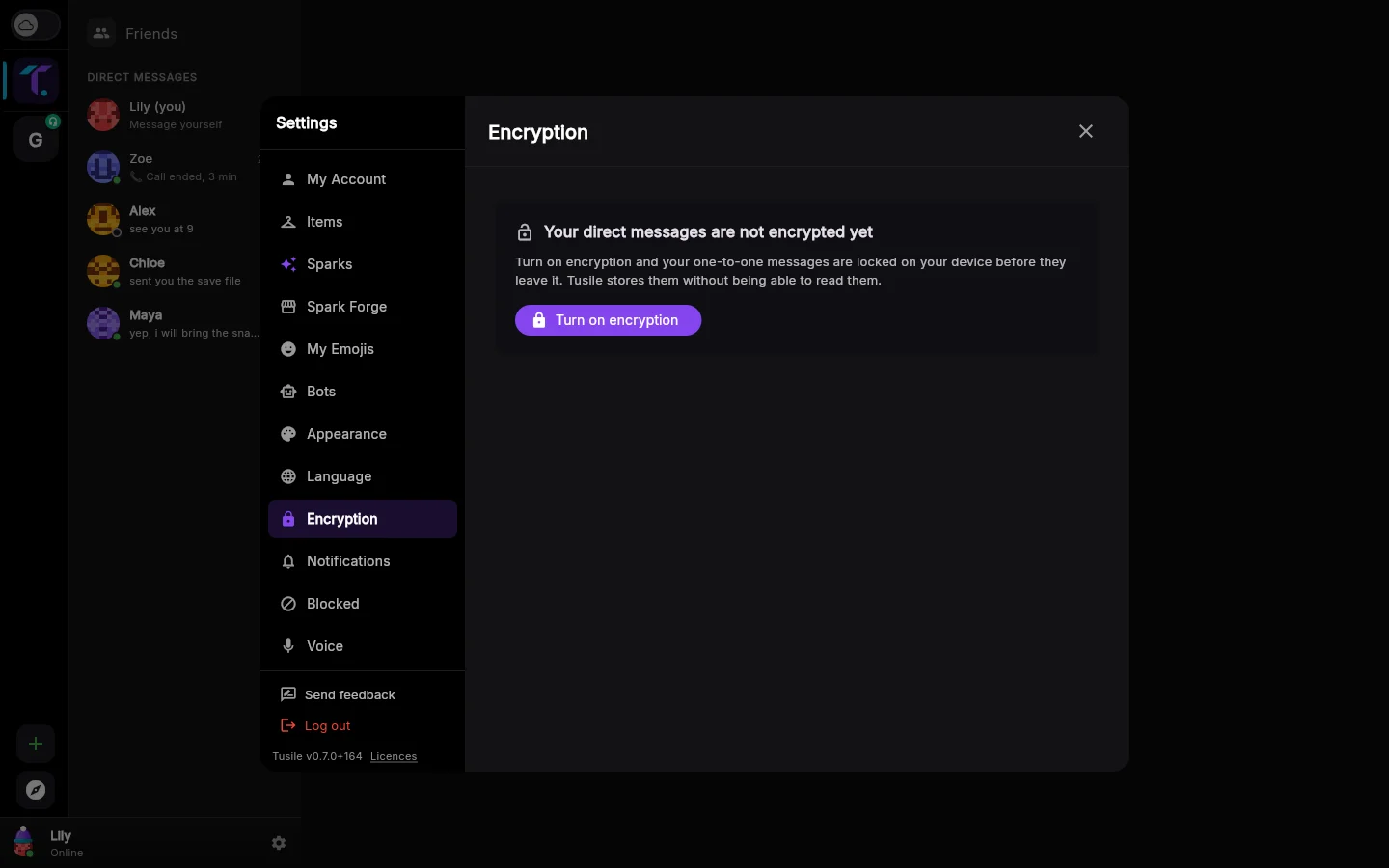
Section titled “End-to-end encryption”You can turn on end-to-end encryption (E2EE) for one-to-one DMs. Your messages and files are then locked on your device before they leave it, and Tusile stores them without being able to read them.
What it covers
Section titled “What it covers”- One-to-one direct messages, sent after both of you turned encryption on.
- Text, files, images and video in those conversations.
What it does not cover
Section titled “What it does not cover”- Community channels and group conversations.
- Messages sent before encryption was turned on.
- Who you talk to, when and how often. Encryption hides what you say, not that you said it.
If the other person has not turned it on, the message box says Not encrypted. The other person has not turned encryption on.
Turn it on
Section titled “Turn it on”- Open Settings, then Encryption.
- Choose Turn on encryption.
- Read Before you turn this on, then choose I understand, show me my words.
- Write down your twelve-word recovery phrase, in order, and choose I have written them down.
- Type back the two words Tusile asks for, and choose Confirm.
Use encryption on another device
Section titled “Use encryption on another device”When you sign in on a new device, encrypted messages show as locked. Open Settings, then Encryption, choose Enter recovery phrase, type your twelve words and choose Unlock.
The Devices list on the same screen shows every app that has unlocked encryption with your phrase. To take the key off the device you are using, choose Remove key from this device.
If you lost your phrase, choose I do not have my recovery phrase to start over with a new key. Every message encrypted with your old key then becomes permanently unreadable, for you and for the people you wrote to.
Check a safety number
Section titled “Check a safety number”A safety number proves you are talking to the right person, with nobody in between.
- Open the encrypted conversation.
- Choose the shield icon (Safety number) in the header. On a phone it is in the ⋮ menu. You can also open it from the person’s profile.
- Compare the number and code with the other person, in person or over a call you trust. If they match, the conversation is secure.
If a contact gets a new key (usually because they reinstalled Tusile or set up a new device), you see This contact has a new encryption key. Sending pauses until you choose Verify and then Accept new key.
Good to know
Section titled “Good to know”- Link previews in encrypted messages do not load by themselves. Tap Show preview to load one; this sends the link to Tusile’s servers.
- Forwarding an encrypted file decrypts it and uploads a new copy wherever you send it. In a channel, that copy is not encrypted.
- Drafts in DMs are kept only while the app is open.
- To stop encrypting new chats, choose Stop encrypting new chats on the Encryption screen. Conversations that are already encrypted stay encrypted and keep working.
Mute or block
Section titled “Mute or block”To mute a conversation, use Mute conversation on it in the DM list. More notification options are on the Notifications page. To block someone, see Privacy and safety.