
Notifications
Tusile tells you about new messages, friend requests and calls in a few ways: push notifications on your phone, sounds while the app is open, and unread badges in the server and channel lists.
Where notifications show up
Section titled “Where notifications show up”- Android, iPhone and iPad: push notifications, also while the app is closed. Allow notifications when Tusile asks. If you said no, turn them on for Tusile in your phone’s system settings.
- Windows, macOS, Linux and the browser: while Tusile is open, you hear a sound and see unread badges. There are no push notifications on these.
Choose what you get pushed
Section titled “Choose what you get pushed”Open Settings, then Notifications. These switches apply to your account, on every device:
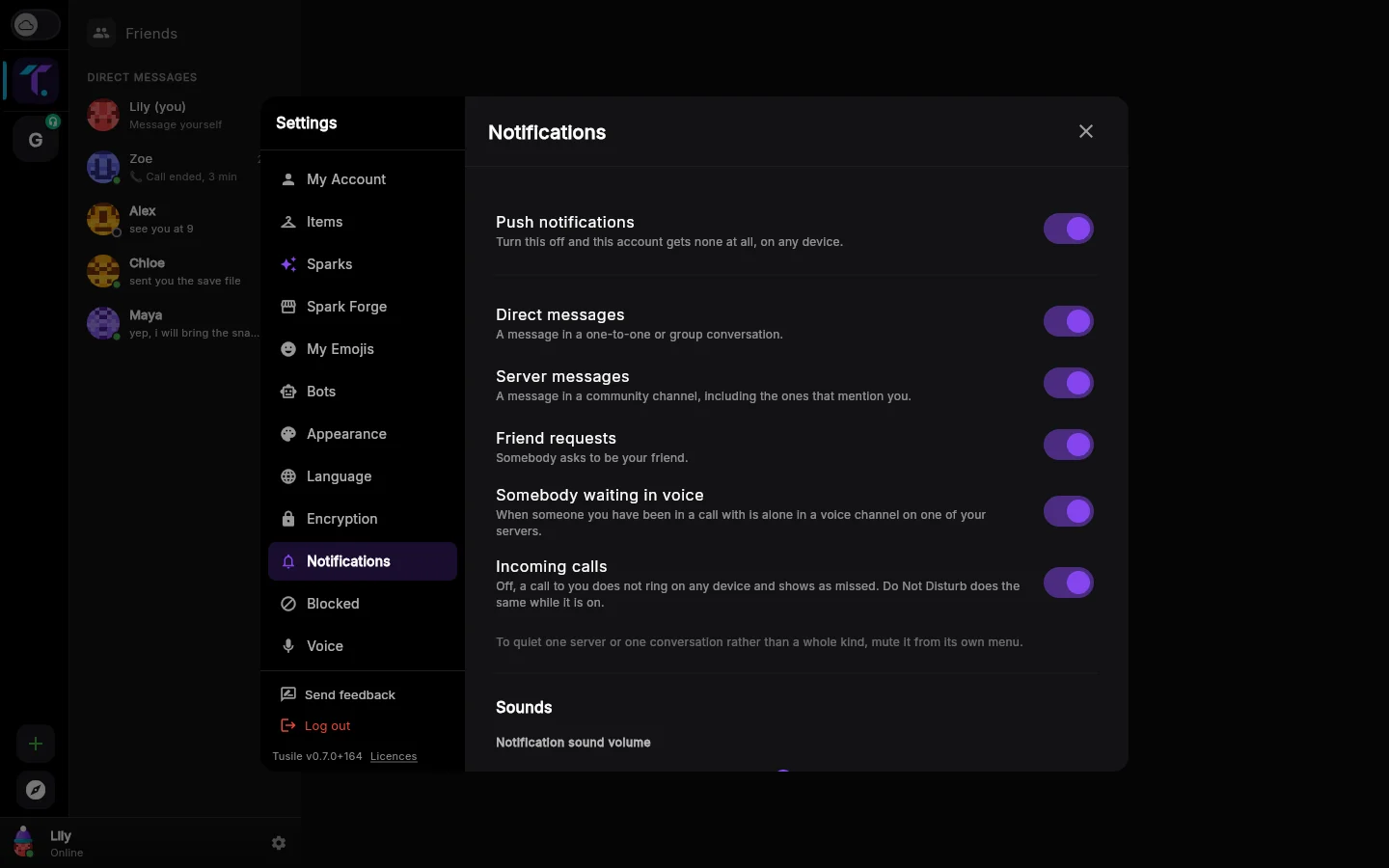
| Switch | What it covers |
|---|---|
| Push notifications | The main switch. Off, your account gets no push notifications at all. |
| Direct messages | A direct message to you. |
| Server messages | A message in a community channel, including the ones that mention you. |
| Friend requests | Somebody asks to be your friend. |
| Somebody waiting in voice | Someone you have been in a call with is alone in a voice channel on one of your servers. |
| Incoming calls | Off, a call to you does not ring on any device and shows as missed. |
Quiet one server
Section titled “Quiet one server”Right-click the server in the server list (long-press on a phone) and pick a notification mode:
- All: every message can notify you.
- Mentions: only messages that mention you.
- Muted: nothing from this server. A muted server shows a crossed-out bell next to its name.
Quiet one channel
Section titled “Quiet one channel”Right-click the channel in the channel list, or tap the ⋮ next to it, and pick All, Mentions or Muted, the same as for a server. A muted channel shows a bell in the chat header: tap it to unmute.
Quiet one conversation
Section titled “Quiet one conversation”In your direct messages list, right-click the conversation (long-press on a phone, or swipe it to the left) and choose Mute conversation. Choose Unmute conversation to undo it.
Do Not Disturb
Section titled “Do Not Disturb”Set your status to Do Not Disturb by tapping your name or picture at the bottom of the left panel. While it is on, you do not get notifications, message sounds stay quiet, and calls to you do not ring. Set your status back to Online when you are done. See Profile and appearance.
Sounds
Section titled “Sounds”In Settings, then Notifications, Notification sound volume sets how loud message, join and leave sounds play on this device. Voices in a call are not affected.
The same screen has Call sounds, where you can pick the ringtone for incoming and outgoing calls or upload your own MP3 (up to 3 MB). See Direct messages and calls.
What a server decides
Section titled “What a server decides”A server’s owner can turn push notifications off for the whole server, or leave out the message text or the sender’s name from them. If you get no push for one server while others work, that may be why. Owners set this in Server settings.
Not getting notifications?
Section titled “Not getting notifications?”- Check that Push notifications is on in Settings, Notifications.
- Check that the server, channel or conversation is not muted.
- Check that your status is not Do Not Disturb.
- On a phone, check that notifications for Tusile are allowed in the system settings, and that battery saving is not stopping the app.
Still stuck? Contact support.