
Add a bot
A bot is a member of your server with a BOT tag. It can answer slash commands, put buttons and forms on messages and help moderate. It holds roles, and its permissions are checked like anyone else’s.
Adding, changing and removing a bot needs Manage Server on that server.
Add a bot from Discover
Section titled “Add a bot from Discover”- Open Discover and choose the Bots tab.
- Open a bot to see what it does: About, What you can ask it and What it asks to be allowed.
- Press Add to server (or Add on a small screen) and pick your server.
- Choose its permissions (see below) and press Add bot.
Add a bot from Server settings
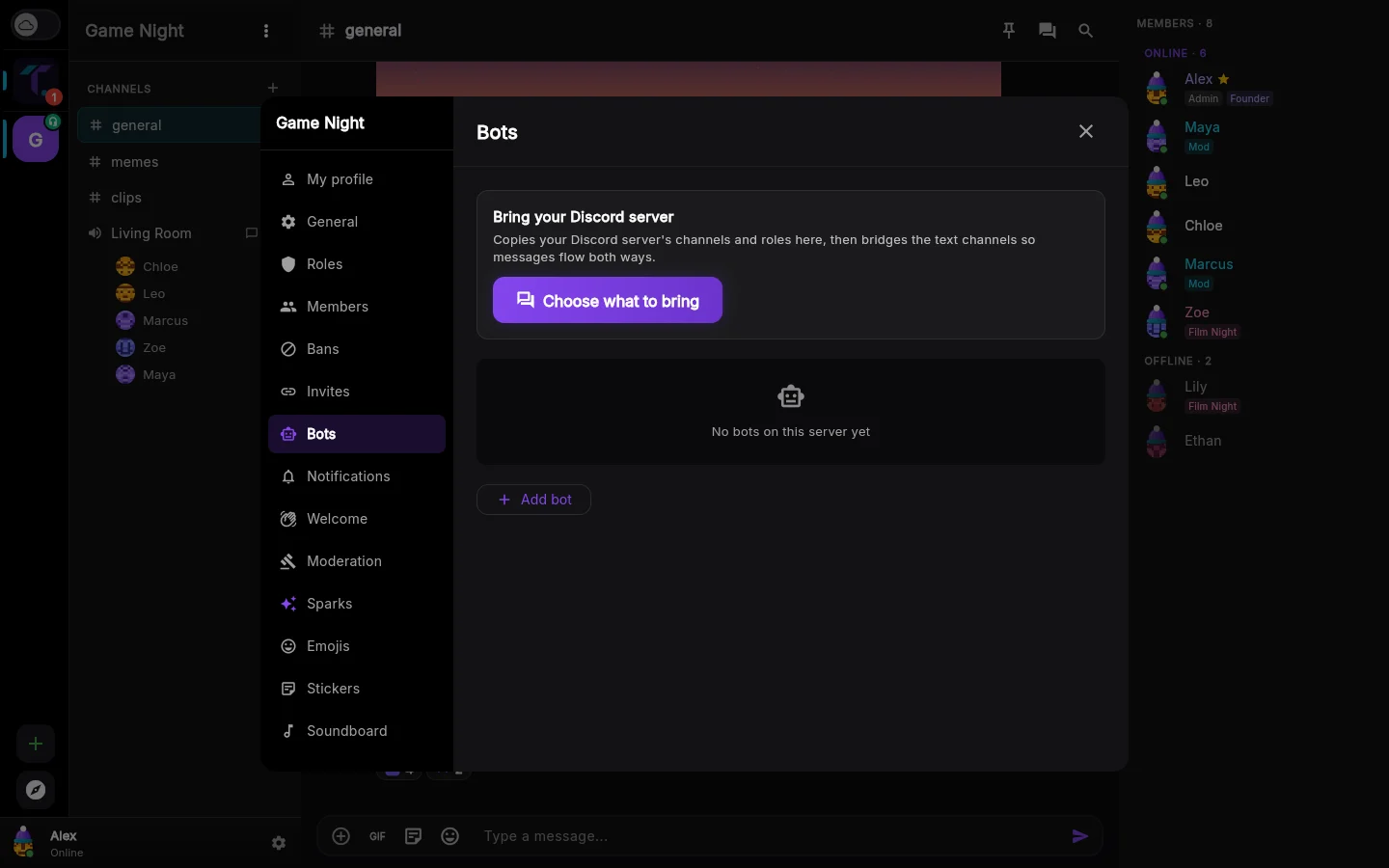
Section titled “Add a bot from Server settings”- Open Server settings, then Bots.
- Press Add bot.
- Search the list. It shows public bots and any bots you made yourself.
- Pick a bot, choose its permissions and press Add bot.
A private bot can only be added to a server owned by the bot’s own author. To add it anywhere else, its author has to make it public.
Choose what a bot may do
Section titled “Choose what a bot may do”When you add a bot, Tusile shows the permissions it asks for. Turn off anything you would rather it could not do.
- You cannot give a bot a permission you do not hold yourself.
- If a bot asks for nothing, it can do what everyone on the server can do, and nothing more.
- With everything off, a bot cannot even read a channel.
- Whatever you choose, a bot can always see who is in the community and what the roles are, like every other member.
You can also give a bot roles, like any member, and limit it per channel with channel permissions.
Change or remove a bot
Section titled “Change or remove a bot”Open Server settings, then Bots. Next to each bot:
- Permissions: change what it may do, then press Save.
- Remove: take it off the server. Its commands go with it, and it loses access to every channel.
Use a bot
Section titled “Use a bot”Type / in a channel to see the commands your bots offer. Some bots answer when you mention them.
Bring a Discord server
Section titled “Bring a Discord server”The Bots tab also holds the Bring your Discord server card. See Import from Discord.
Write your own bot
Section titled “Write your own bot”Making a bot, its key and secret, and the @tusile/bot package are covered in Bots for developers.