
Voice chat
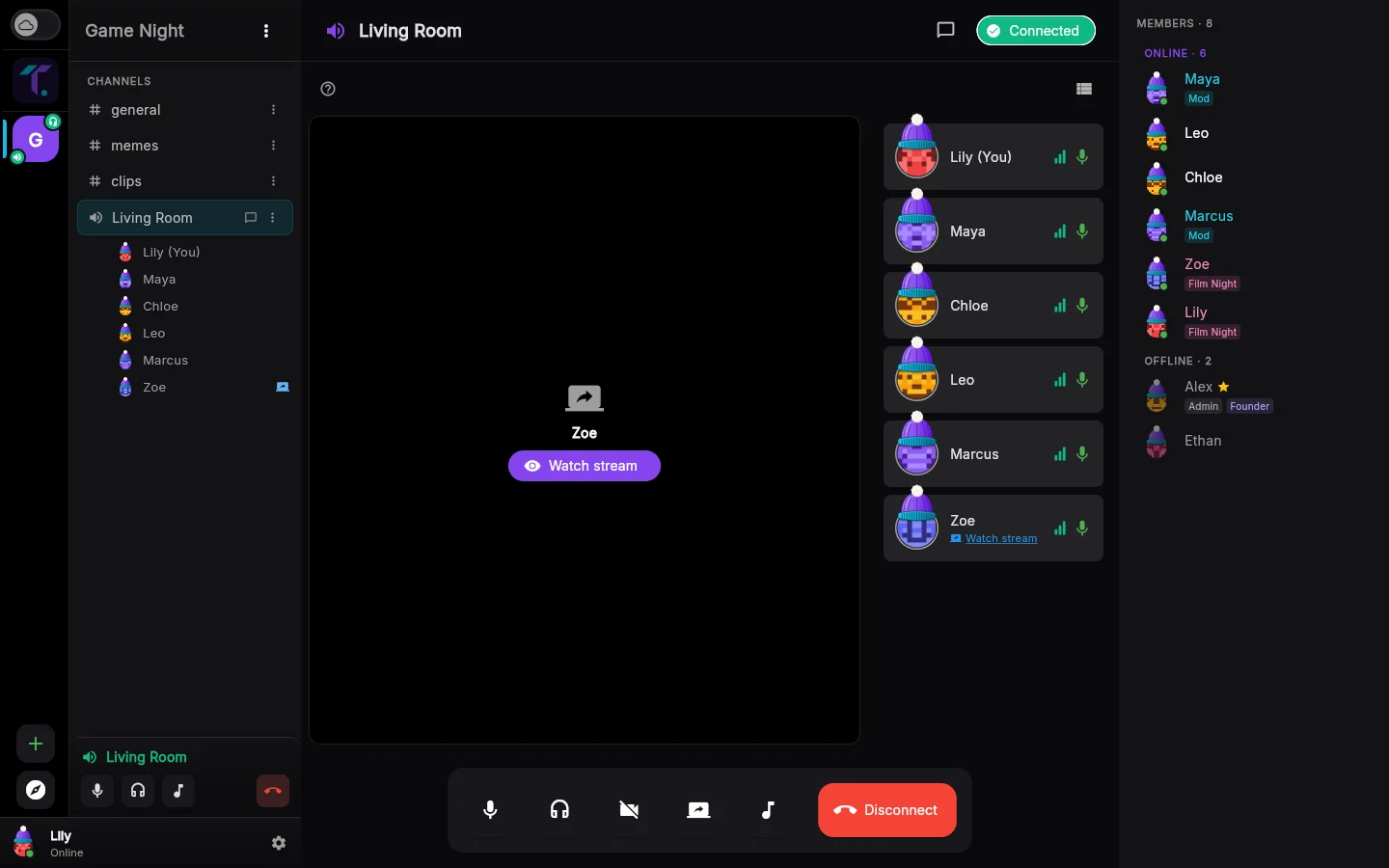
Voice channels are rooms you drop into and talk. Anyone in the channel hears you while your mic is on, and you can turn your camera on or share your screen from the same call.
Join and leave a voice channel
Section titled “Join and leave a voice channel”- In a community, open a voice channel from the channel list.
- Press Join voice.
- The first time, allow microphone access when your system or browser asks.
To leave, press Disconnect.
The channel list shows who is in each voice channel, even before you join. If no microphone is available, you still join, as a listener: Tusile shows “Microphone unavailable, joined as listener”.
Switch channels or devices
Section titled “Switch channels or devices”- You can be in one voice channel at a time. Joining another one asks Switch voice channel?. Press Switch to move.
- You can be in voice on one device at a time. If you are already in a call on your phone and join from your computer, the call moves to the computer and the phone shows “Voice moved to another device”.
Mute and deafen
Section titled “Mute and deafen”The buttons at the bottom of the call:
- Mute turns your microphone off. Press Unmute to talk again.
- Mute all sound (deafen) silences everything you hear and mutes your mic too. Press Unmute all sound to undo it.
If a moderator mutes or deafens you, Tusile tells you (“You have been server muted by a moderator”) and the button shows Server muted by moderator. You cannot undo that yourself; a moderator has to lift it.
Change how loud someone is
Section titled “Change how loud someone is”- In the call, right-click a person (desktop) or long-press them (phone and tablet).
- Drag the User volume slider.
- To go back to normal, press Reset volume.
This only changes what you hear. Nobody else is affected.
Voice settings
Section titled “Voice settings”Open Settings, then the Voice tab.
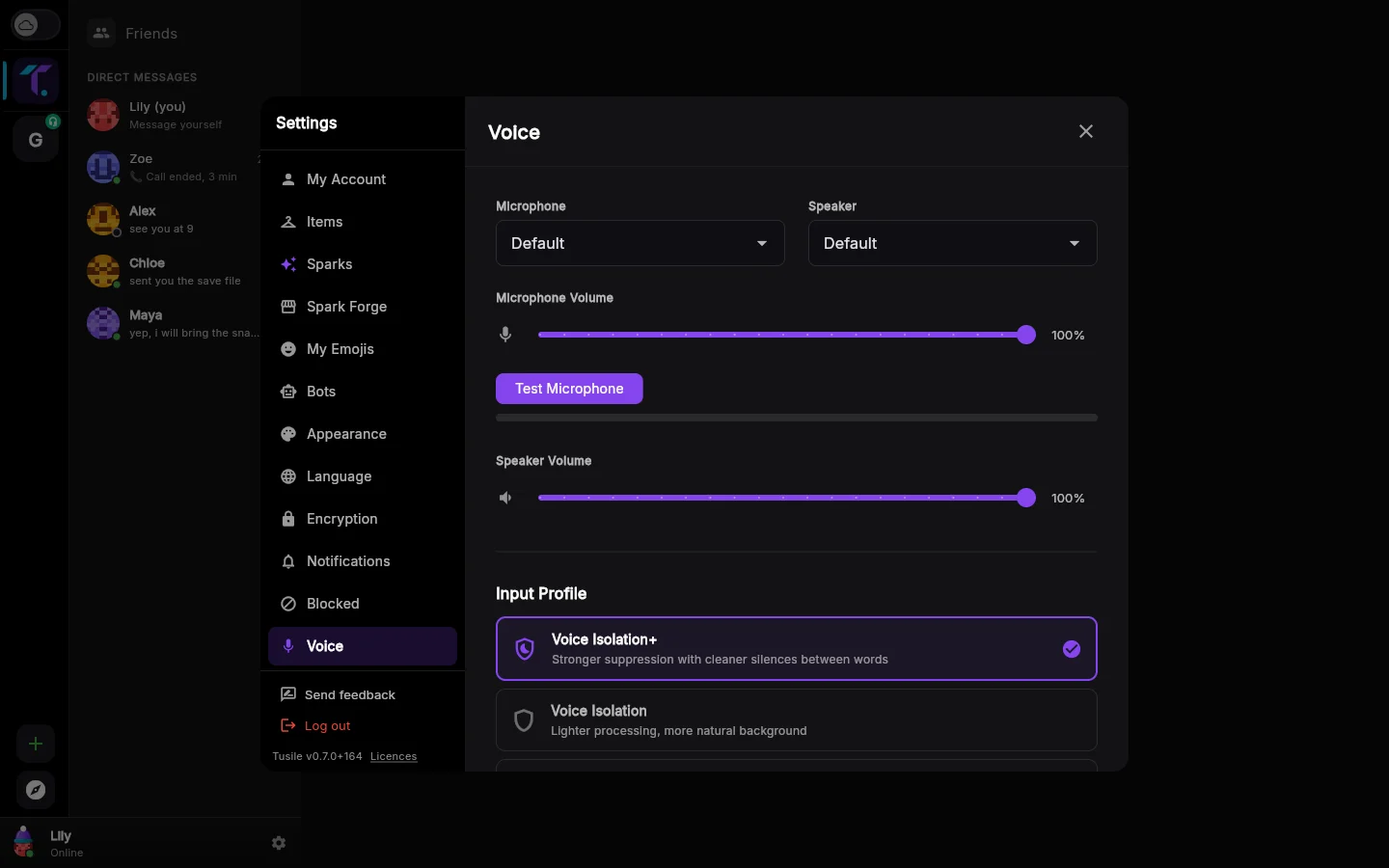
- Microphone and Speaker: pick the input and output device, or leave them on the system default.
- Microphone Volume and Speaker Volume: the speaker goes up to 200% in the apps and 100% in the browser.
- Test Microphone: shows your level. While the test runs, press the headphones button (Listen to yourself) to hear your own mic.
- Reset audio settings to default puts every voice setting back.
If the headset, mic or speaker you picked is unplugged during a call, the call moves to the device you used before it, and back again when it returns.
Input profile
Section titled “Input profile”Pick how much Tusile cleans up your mic:
| Profile | What it does |
|---|---|
| Voice Isolation+ | Stronger suppression with cleaner silences between words |
| Voice Isolation | Lighter processing, more natural background |
| Studio | Clean sound: open mic without processing |
If people say you sound muffled or robotic, try Voice Isolation or Studio. If they hear your keyboard, fan or room, try Voice Isolation+.
Push to talk and keybinds (desktop)
Section titled “Push to talk and keybinds (desktop)”Push to talk keeps your mic muted until you hold a key. It is available in the Windows, macOS and Linux apps, not in the browser or on phones.
- Open Settings, then Voice.
- Turn on Push to Talk.
- Next to Push to Talk Key, press Rebind and press the key you want.
On the same screen you can bind a Mute key and a Deafen key, and turn Push-to-talk beeps on or off (a short beep when you press or release the key). To remove a binding, press Unbind.
These keys work while another app or game has focus.
Camera
Section titled “Camera”To turn your camera on in a call, press Turn camera on. On a narrow screen, the camera and screen share live together under one video button; tap it and pick Camera.
- On phones and tablets, a flip button (or Switch camera in the video menu) switches between front and back cameras. Long-press it, or the video button, to list every camera.
- On desktop, long-press the camera button to pick a camera.
Camera settings and background effects
Section titled “Camera settings and background effects”Open Settings, then the Video tab:
- Camera: pick which camera to use, then press Test to see a preview.
- Background Effect: None, Blur (blur your background) or Image (press Choose image, or drop a picture on the tile, to replace your background). Images must be still pictures.
Background effects only show on devices that can do them (for example iOS 15 and macOS 12 or newer). If you do not see Background Effect, your device does not support it.
Pick how the call looks
Section titled “Pick how the call looks”The view menu at the top of the call changes how you see the people in it. This choice is yours alone: everyone else keeps their own view.
- List view: everyone in the call, one per row: who is talking, who is muted. Screen shares and cameras show as tiles here.
- Bubble view: everyone gets a bubble. The more you talk, the bigger yours grows.
- Waves: everyone is a wave in their own colour, rising as they talk.
The same menu starts games in the call. See Activities.
Chat in a voice channel
Section titled “Chat in a voice channel”Every voice channel has its own text chat. In the channel list, press the chat bubble next to the voice channel (or choose Open chat from its menu). While you are in the call, the Voice | Chat switch at the top flips between the call and its chat, and shows how many messages you have not read. Everything about writing messages is in Messages.
Soundboard
Section titled “Soundboard”The soundboard plays short sounds into the call for everyone.
- In a call, press the soundboard button.
- Tap a sound to play it. Sounds under Tusile are built in; the rest belong to the community.
- Use Your volume or Mute soundboard to change how loud sounds are for you.
To add a sound, press Upload and pick or drop an audio file (MP3, WAV, OGG or M4A), then choose up to 5 seconds of it. Only the part you choose is uploaded, so a long file works too (up to 50 MB). Upload and Clip last 30 s only show if your role is allowed to add sounds.
Clip last 30 s turns the last 30 seconds of the call into a soundboard sound, so you can save a funny moment.
Only people who opted in are ever clipped. Your voice is left out until you turn on Let others clip my voice in Settings, Voice. If nobody in the call allows it, there is nothing to clip.
You cannot play sounds while you are server muted or timed out, or if a moderator blocked you from the soundboard.
On a phone
Section titled “On a phone”- On Android, the call keeps running when you leave the app, and a notification (“In a voice call”) brings you back.
- DM calls work the same way as voice channels. See Direct messages and calls.